How to convert recipe PDFs into EPUB with EPUBTurn
Keep ingredients and method together in a reading copy. Follow the upload, sample and reader checks before deciding whether to convert more pages.
On this page
- Start with the reading task
- 1. Choose an authorised PDF and keep the original
- 2. Upload your PDF with Choose a PDF
- 3. Create a free sample and check selected pages
- 4. Prepare the sample download
- 5. Download the EPUB and inspect it in your reader
- 6. Decide whether to convert more pages
- What the actual example establishes
Start with the reading task
EPUBTurn turns eligible PDFs into EPUB reading copies. This guide shows how to test a recipe PDF through the displayed sample controls. Open the PDF upload page when your document is ready. Keep the source as the reference for the details described below.
2. Upload your PDF with Choose a PDF
Visit the EPUBTurn upload page and choose Choose a PDF. Select the actual recipe document and check the displayed file. The workflow accepts eligible PDFs up to 200 MB, with full conversions up to 100 pages. Do not expect an entire large cookbook to fit the current limit. For a short authorised excerpt, keep its original page order and enough surrounding material to understand any continued method or neighbouring recipe.
3. Create a free sample and check selected pages
Select Create free sample after upload. Up to ten pages are chosen automatically, so check whether the ingredient list and the complete method are both included. A sample of a photograph alone does not answer whether the quantities are recognised correctly. For recipes spread over two pages, inspect the selection before reading the output as a complete cooking sequence. Compare fractions with the printed source, especially where the original PDF already has imperfect copied text.

4. Prepare the sample download
When available, use Create sample download to prepare the EPUB file. Wait for the actual download control and follow any review message. Keep the source open rather than assuming that a recognised recipe title means the quantities and instructions are also correct. If a required page was not selected or processing needs attention, record the missing check. Do not invent a corrected ingredient or silently supply a method step that is absent from the output.
5. Download the EPUB and inspect it in your reader
Select Download sample EPUB and open the saved file in your reader. Apple Books on Mac can add the EPUB through File > Import. Read each ingredient name, quantity and unit together, then follow the complete method. Enlarge the text and check whether neighbouring recipes remain separate. Inspect any technique photograph with its caption. Keep the source at hand while checking; a comfortable layout does not verify the recipe’s safety or suitability for your diet.

6. Decide whether to convert more pages
Consider full conversion only if the current screen offers it and the sample answers the recipe-reading question. Follow any sign-in request and inspect the actual page-credit confirmation before proceeding. No fixed price or tested paid checkout is asserted here. If fractions, recipe boundaries or continuation text remain uncertain, use the PDF for those details. Save both files so a later library import does not hide which version you actually inspected.
What the actual example establishes
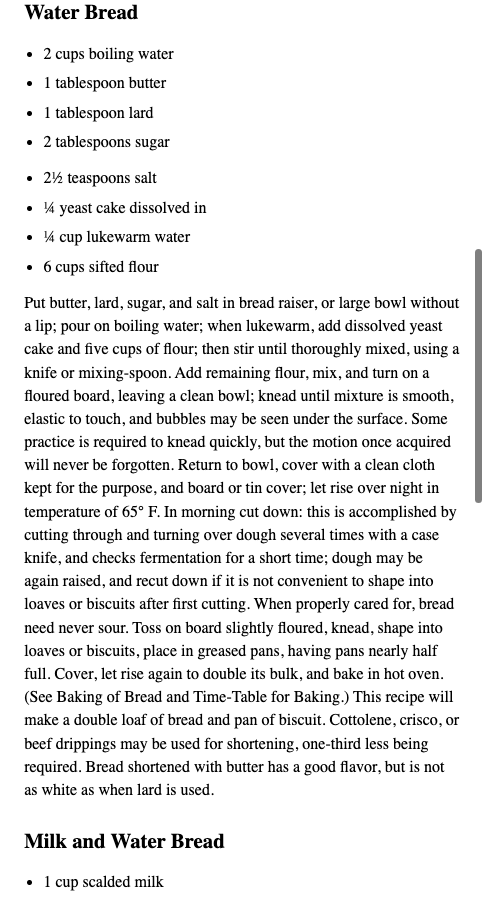
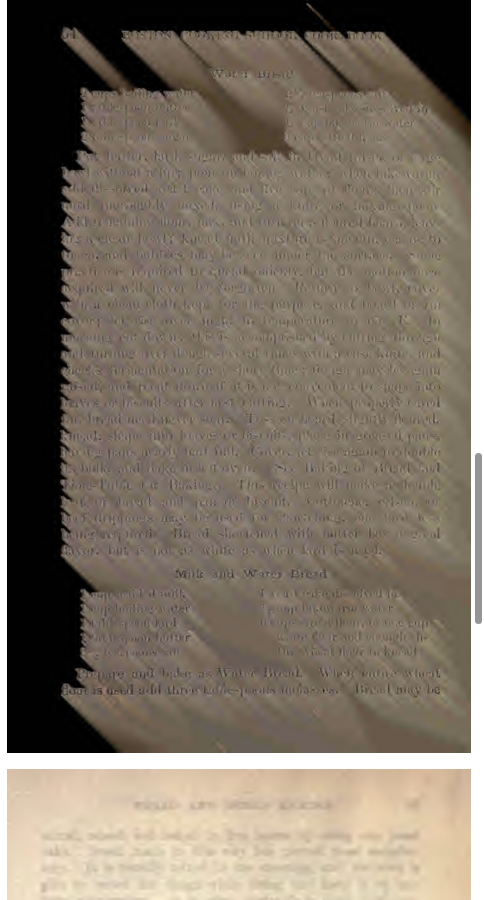
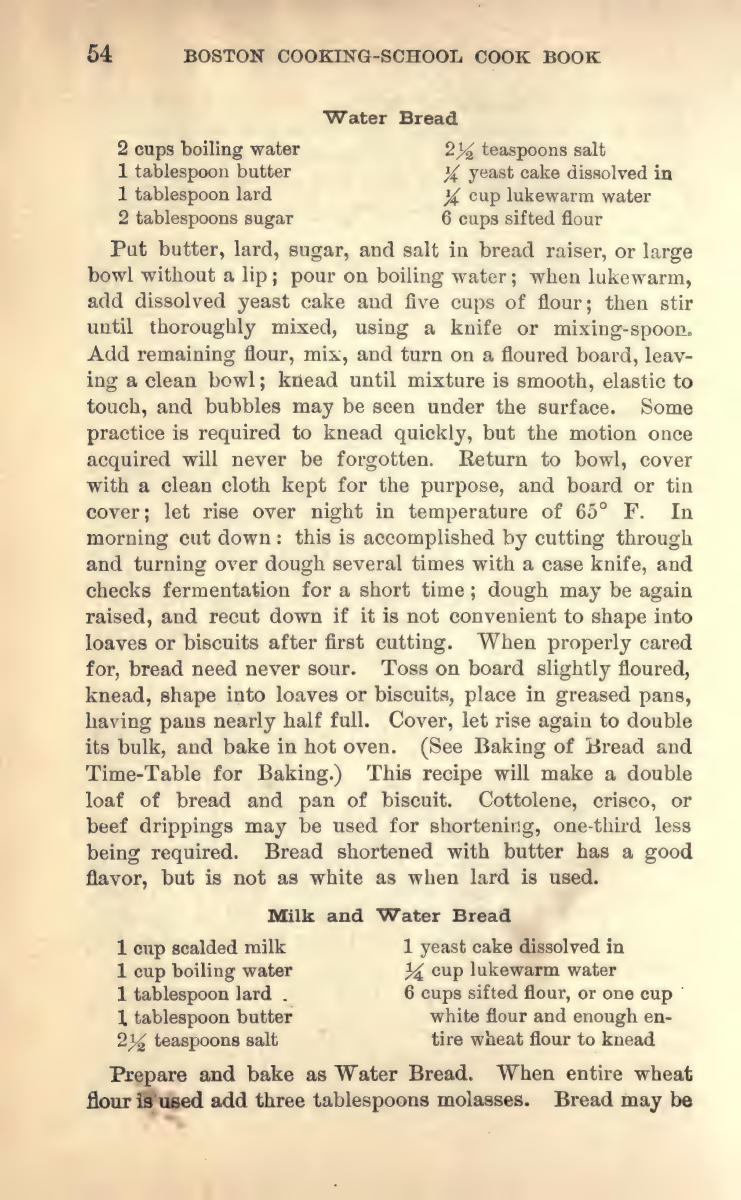
Our actual three-page input preserves original PDF pages 42, 86 and 87 of Farmer’s 1917 Boston Cooking-School Cook Book: a photograph page and printed bread pages 54–55. The normal EPUBTurn sample included all three without manual crop or text corrections. Water Bread retains its ingredient names and fractions, including 2½ teaspoons salt, ¼ yeast cake and ¼ cup water. The method follows as adjustable prose. Milk and Water Bread continues onto the next page, with a running page header interrupting that transition. Two photographs and their recognised captions are present. This is a narrow sample of historical pages, not a complete cookbook or a food-safety check.
EPUBTurn sample
Calibre default output
Files used in this guide
Download the source files, conversion results or worksheets referenced here. Each label identifies the source document or the converter used.
Same three-page original cookbook inputActual unedited EPUBTurn three-page sampleSources and further reading
Related guides
- How to convert magazines into EPUB with EPUBTurn
- How to convert an illustrated novel into EPUB
- How to convert annual reports into EPUB with EPUBTurn
- How to convert instruction manuals into EPUB with EPUBTurn
- How to convert a PDF newsletter into EPUB
- When EPUB reflow changes the meaning of poetry
- Comics and manga: when to keep fixed pages
- Illustrated PDF to EPUB: actual diagrams, charts and reading results
- How to convert an image-only or scanned PDF into EPUB
- How to read a research paper as EPUB with EPUBTurn
- How to turn a textbook chapter into an EPUB reading copy
- How to convert lecture notes into EPUB with EPUBTurn