OCRmyPDF and Calibre for scanned-document reading
OCR can make a scan searchable without making its paragraphs comfortable to read. Verify recognised text first, then inspect the EPUB produced by the next conversion stage.
On this page
Check recognised words before using Calibre
- Create an OCR copy while preserving the original scan.
- Check several words and numbers against the page image.
- Try conversion on a representative section.
- Inspect paragraphs and useful pictures in the EPUB.
Keep OCR and conversion as two recorded stages
A basic OCRmyPDF workflow is ocrmypdf inputscan.pdf searchable.pdf. Use separate input and output names and follow the current installation documentation. Open searchable.pdf and compare recognised text with the scan before moving on. The purpose of this stage is a searchable PDF, not a promise of paragraph reflow.
Then add the OCR PDF to Calibre and use Convert books with EPUB as the output for a representative trial. Record any conversion settings you change. Inspect the resulting paragraph order and diagrams independently of the OCR check. A recognised sentence may still be placed in the wrong reading order. If many pages need repairs, weigh that work against an EPUBTurn sample of a permitted source. An online reading conversion is a different workflow and should not be treated as an invisible extension of the local OCR tool.
Separate existing scan-text errors from conversion errors
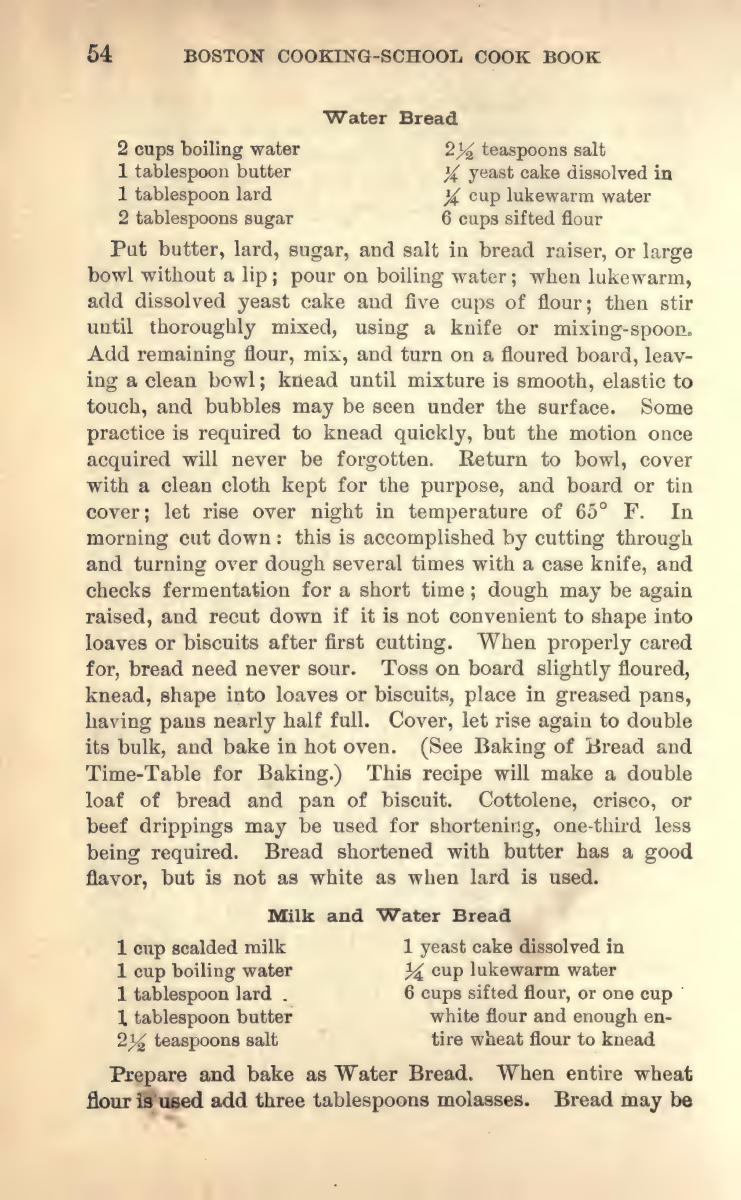
The cookbook excerpt is an actual historical scan with an existing, imperfect text layer. On the Water Bread page, printed fractions and copied source text differ before a converter receives the PDF. OCRmyPDF can be part of a separately prepared local workflow, but replacing or repeating recognition requires reviewing the resulting text against the printed page. Calibre’s conversion and source recognition are different stages. This guide does not claim that OCRmyPDF was run on the excerpt or that a new recognition pass corrected its fractions.
Searchable PDF is only an intermediate step
Searchable PDF is an intermediate result, not proof of comfortable EPUB reflow. Do not run an unfamiliar command over your only copy. Read the current tool instructions and inspect output before batching files.
Compare the actual scan-reading routes on the same pages
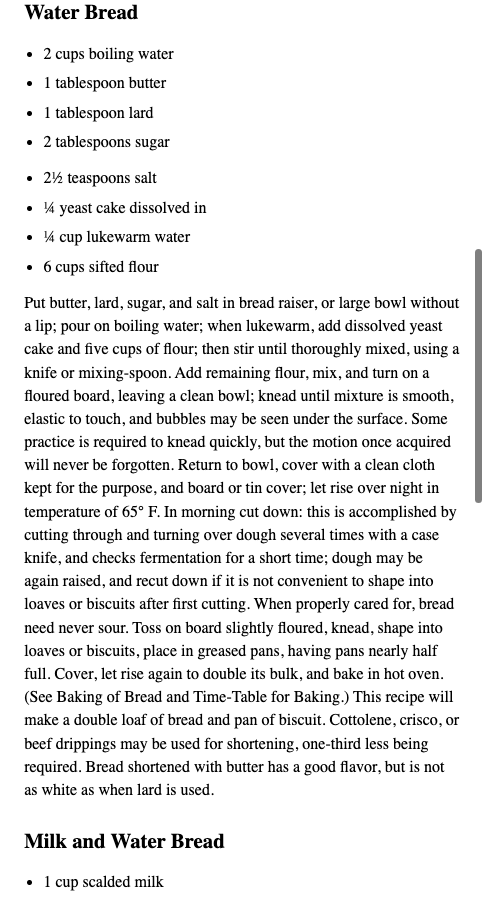
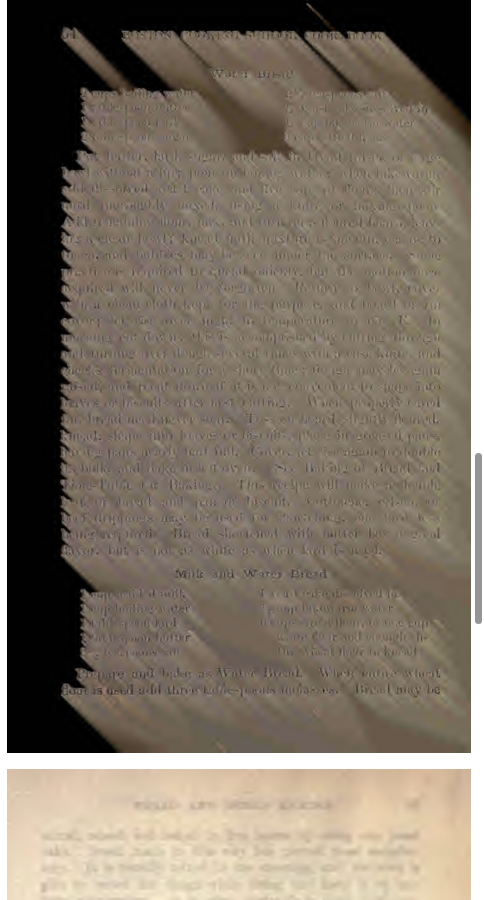
The three-page cookbook comparison used exactly the same unchanged PDF for EPUBTurn and Calibre 8.8.0 defaults. EPUBTurn’s sample has recognised Water Bread ingredients and instructions, including inspected fractions, plus both photographs. The Calibre output keeps scan layers separated and has no recognised recipe paragraphs. That observed difference answers this reading task; it does not show what a separately configured OCRmyPDF-and-Calibre workflow would produce. Keep recognition preparation and conversion results distinct.
Open the actual source PDF · Download the saved EPUBTurn sample.
For your own document, create an EPUBTurn sample from your PDF, then use the reading checks described here.
EPUBTurn sample
Calibre default output
Files used in this guide
Download the source files, conversion results or worksheets referenced here. Each label identifies the source document or the converter used.
Same three-page original cookbook inputActual unedited EPUBTurn three-page sampleSources and further reading
Related guides
- Find the cause of garbled EPUB text with a three-way check
- How to convert an image-only or scanned PDF into EPUB
- Multilingual PDF conversion: check names, accents and order
- EPUB ligatures: check search and copied text before changing letters
- Correct scanned-page rotation before OCR and conversion
- Choose OCR languages and catch recognition mistakes