How to add or repair an EPUB cover
A clear cover helps readers find the book, but cover edits must not remove the introduction. Check the image, title page and opening chapter as separate parts.
On this page
Choose and test a cover image
- Choose an image you have permission to use.
- Check that title text remains readable at thumbnail size.
- Keep the cover separate from the opening chapter.
- Inspect both the library thumbnail and opening pages.
Set a cover without sacrificing the first chapter
In Calibre Editor, inspect the image list and identify the intended cover. Right-click the image and choose Mark as cover. The image designation is separate from a title page: an HTML page marked as title page should contain only cover material. Do not mark a file that also contains the introduction or Chapter One as a disposable cover page.
Save a copy and inspect the library thumbnail, the cover opened at full size and the start of the reading content. Different readers can cache an old thumbnail, so check that you actually imported the new file before changing the cover again. Prefer simple artwork that communicates the subject at small size. A detailed scan of an ornate cover may be faithful to the original but illegible in a library grid. Rights to convert a document do not necessarily include rights to replace its cover with someone else’s image.
Inspect a real illustrated edition’s opening
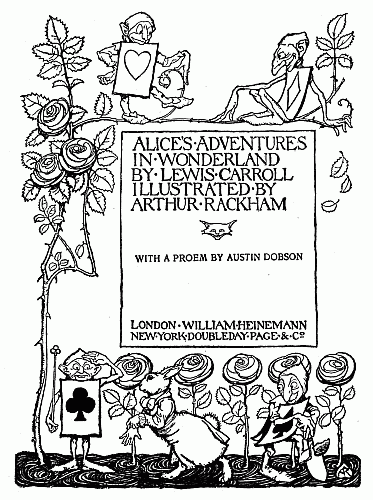
Open Alice’s Adventures in Wonderland and distinguish the title, opening material and Chapter I, Down the Rabbit-Hole. A cover should identify the book without hiding the beginning of the story. In your own EPUB, preview the chosen cover at library-thumbnail size, then reopen the book and follow the contents into Chapter I. Use an illustration you have permission to reproduce; marking the first useful story picture as the cover can give the library an image while misrepresenting the edition. No cover repair was performed on the linked book.
Open the published source.
Protect text when marking a cover
Never mark a page containing chapter text as cover-only without understanding the editor. Calibre warns that converting such a title page can discard other content on that page.
Test recognition at thumbnail size
A useful cover helps you recognise the book quickly. View the design small enough to resemble a library thumbnail and ask whether its main title or subject remains identifiable. Fine print that is attractive at full resolution may vanish at that size. Avoid solving the problem by adding more tiny text.
A scanned cover can include a spine, background or surrounding desk. Cropping a permitted copy may make the cover clearer, but keep the full original scan. If the cover has significant publication information, retain that information in the book rather than hiding it in a crop. A new decorative illustration is not evidence of the book’s actual content or conversion quality.
Finally, compare three states: thumbnail, opened cover and first reading page. If the thumbnail remains old while the opened cover changed, investigate the imported copy or cache before changing the file again. If the first reading page disappeared, undo the title-page designation and inspect which content the editor treated as cover material. A good-looking library tile is not worth losing the introduction.
Keep a cover decision separate from reading quality
EPUBTurn provides the saved reading copy used for this check. The NASA sample lets you inspect retained hardware drawings and the surrounding prose; those results do not establish a suitable novel cover. Check the opening screen and library thumbnail separately when making your own book. If the only problem is a missing cover in a readable EPUB, an editor remains the smaller job. Choose a new PDF conversion for the reading content it gives you, then review how that edition presents itself.
Open the actual source PDF · Download the saved EPUBTurn sample.
For your own document, create an EPUBTurn sample from your PDF, then use the reading checks described here.