Inspect conversion problems with Calibre Editor
Calibre Editor can help locate a damaged chapter or picture reference. Search for the exact passage, make a narrow change and check the saved book in your reader.
On this page
Locate the affected chapter in Calibre
- Open a backed-up EPUB in Edit book.
- Locate the affected chapter from the file list.
- Compare preview with the original PDF.
- Use book checks and then perform a reader check.
Locate, change and check one section
Right-click the EPUB in Calibre and choose Edit book. Use search to find a distinctive phrase from the damaged passage, then inspect the containing text file and live preview. Change only the relevant content or reference, save and use the book-checking tool to look for structural problems.
Afterwards, reopen the saved file in your usual reader and repeat the task that originally failed. If a contents link opened the wrong chapter, follow that link; if the image was wrong, inspect the picture-caption pair. Structural checks cannot judge whether the prose still says what the PDF says. Keep a checkpoint before edits affecting multiple files and treat automated cleanup as a change requiring inspection, not a guarantee of correctness.
Locate an actual chapter and illustration in the editor
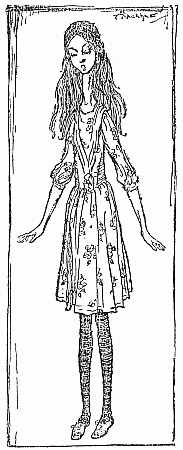
Find a chapter heading and its related Rackham illustration in Alice’s Adventures in Wonderland. In a copy of your own EPUB, use Calibre Editor’s chapter list and image preview to locate the passage you are diagnosing. Compare the visible picture, chapter text and reading order with the source edition. Removing all pictures may hide a warning while discarding part of the story. Keep the original file and a separately saved correction so the change can be checked. No fault is asserted in the linked Gutenberg edition.
Open the published source.
Save a backup before wider edits
Keep a checkpoint before changes that affect several files. Calibre preview is useful for inspection, but the reading application you actually use remains the final place to assess comfort.
Use the editor to identify the smallest repair
The file browser tells you which chapter and resources are involved. Search for a distinctive phrase rather than scrolling through the whole book. Compare the editor preview with the source passage, and decide whether the issue is content order, a picture reference or styling. Those causes call for different edits.
Do not use a broad cleanup operation as a substitute for diagnosis. Removing unused resources may be useful, but it will not restore a missing sentence. Changing styling can make a heading look better without fixing its navigation role. Check the task the reader actually failed to complete.
A checkpoint and a separate saved copy make experimentation reversible. If an edit creates another defect, return to the previous version and narrow the change. When the problem affects many chapters, compare the likely repair effort with a new conversion trial. EPUBTurn may help with the source’s reading flow; Calibre remains useful for inspecting and repairing the existing EPUB.
Separate a new conversion from an editor correction
The actual NASA output gives you hardware labels, figure captions and original-page links to inspect in Calibre Editor. Keep that unedited download separate from any change you make afterward. EPUBTurn reconstructs PDF reading content; Calibre Editor lets you correct an existing EPUB. A retained picture in this sample cannot decide whether your current book needs one repaired reference or a new conversion across many pages.
Open the actual source PDF · Download the saved EPUBTurn sample.
For your own document, create an EPUBTurn sample from your PDF, then use the reading checks described here.