How to reduce EPUB file size without losing image detail
A smaller EPUB is useful only if its diagrams remain readable. Compress a copy conservatively and compare the smallest useful labels before keeping the change.
On this page
Find the largest images first
- Duplicate the EPUB before optimisation.
- Identify large images rather than deleting pictures blindly.
- Reduce an oversized decorative image first.
- Check useful diagrams at normal and enlarged viewing sizes.
Compress selected images and inspect the tradeoff
Calibre Editor includes an image-compression tool. Open a copy through Edit book and find the image-compression operation under Tools. Review which images are included and prefer a conservative change before using any lossy setting. Keep labelled figures out of aggressive compression until you have inspected their smallest useful text.
Compare file size after saving, then open the new EPUB independently. Do not judge only the editor’s preview: a small e-reader screen may make a damaged label more obvious. If a landscape photograph remains attractive but a chart legend becomes unreadable, use a less aggressive setting for the chart. The minimum useful size is determined by the content, not a universal dimension. Embedded fonts and repeated resources can also contribute to file size; avoid deleting them blindly because the resulting reading appearance may depend on them.
Choose compression around a real illustration
Arthur Rackham’s illustrations in Alice’s Adventures in Wonderland give a practical reason to inspect image detail before reducing file size. Compare a full illustration at the screen size you use, particularly small faces and fine lines. Save a compressed copy separately and reopen the illustration rather than judging only the smaller byte count. If the EPUB stores the same picture more than once, investigate why before removing a file: several chapters may reference the same resource. We do not claim a measured size saving for this edition.
Open the published source.
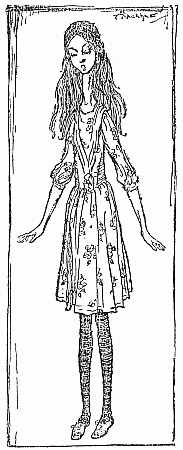
Keep labels readable after compression
Avoid promising a percentage reduction. Compression results depend on the images and existing encoding. Preserve the original PDF and EPUB so you can undo a change that damages fine print.
Choose a quality floor before optimising
Write down what must remain readable: perhaps the smallest chart label, a map street name or a photograph showing a particular detail. That list is your quality floor. An acceptable smaller file must still meet those conditions. Decorative textures can usually be judged differently from information-bearing diagrams.
Keep a comparison record containing original size, revised size, changed resources and any lost detail. A reduction is an observation from that specific file, not a general promise for all EPUBs. If the book already contains compressed images, another pass may save little or damage quality. Stop when further reduction harms a useful figure or makes the workflow needlessly complicated.
Do not confuse transfer difficulty with a damaged EPUB. Check the transfer route’s actual limits, file permissions and available storage before editing the book. If a download was incomplete, re-download the original file rather than compressing a corrupt copy. If the whole book is page images, shrinking them can reduce size while still leaving the reader without adjustable text.
Compare file size with useful picture detail
EPUBTurn provides the saved reading copy used for this check. The actual NASA sample is about 1.74 MB and retains the inspected hardware drawings with their labels. That is a concrete file to open and inspect, not a promised size reduction for another book. Keep a labelled component visible at your normal zoom before deciding whether to compress the file. Reconvert from the PDF only when the reading content needs improvement; compressing a useful existing EPUB may be simpler.
Open the actual source PDF · Download the saved EPUBTurn sample.
For your own document, create an EPUBTurn sample from your PDF, then use the reading checks described here.